
How to consultar y crear una versión local de Wikipedia (y mucho más)
KIWIX: ¿Qué información necesitamos guardar en local?

Con un smartphone
Instalar Kiwix application on Android

Kiwix es un lector offline de contenidos web (Wikipedia, archivos, bibliotecas...) que funciona sin conexión a internet.
Es el lector offline oficial de la Fundación Wikimedia.
Instrucciones:
Explorad el catálogo de libros y contenidos disponibles para leer sin conexión Reflexionad juntas:
¿Si internet fuera a desaparecer en 10 minutos, qué descargaríais primero?
¿Qué echaríais de menos? Apuntad vuestras respuestas y construid vuestra frase colectiva con este formato:
¡Hey! Contamos con estos conocimientos en local: __________ y buscamos estos conocimientos para copiar: __________ Copiad vuestra frase en el pad compartido de la intranet local: https://etherpad.calafou.org/p/Perfo_Altranet
También la podeis compartir luego en el grupo compartido por Bluetooth Altranet
With a web browser and a (mini) server
Install Kiwix on a Raspberry Pi !
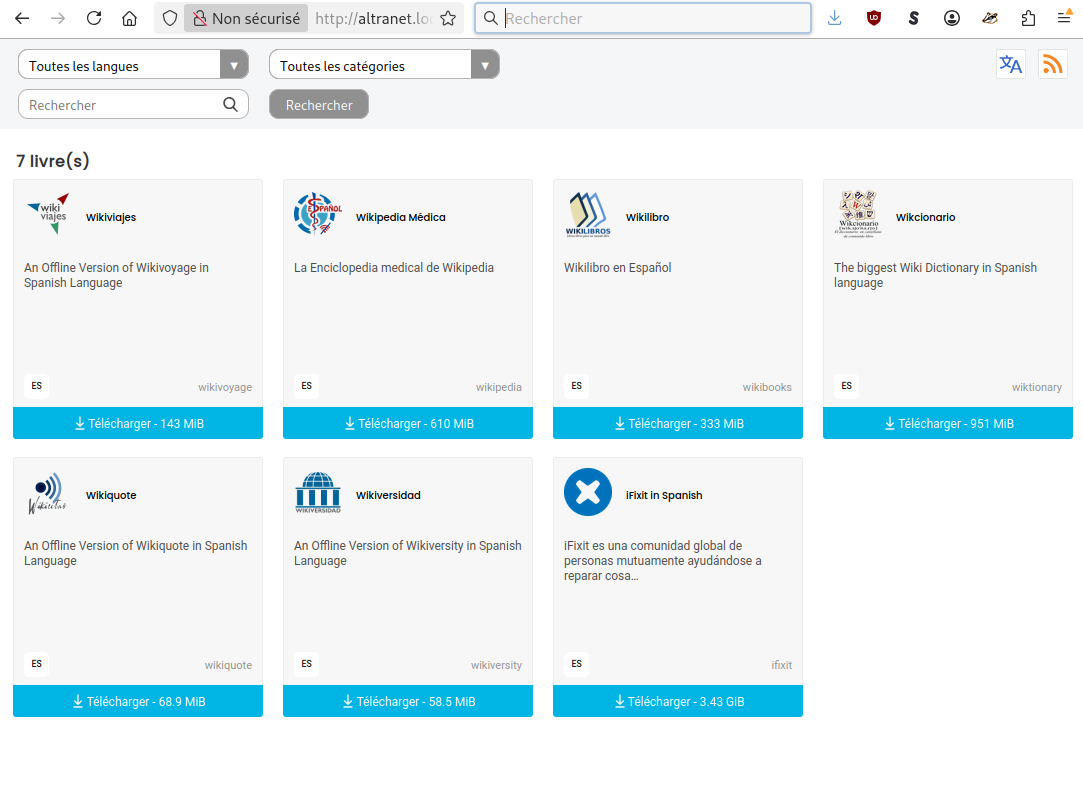
If you change the hostname of the server (here altranet), then you can consult wikipedia (and what you add to kiwx library) with a web browser at http://altranet.local
Prerequisites
Before starting, make sure:
- You have a Raspberry Pi with Raspberry Pi OS installed.
- You have an active internet connection.
- You are logged in as a user with
sudoprivileges. - My user is
admin, if yours is different please change it in the below scrips.
Installation Steps
Step 1: Update and Upgrade Your System
First, ensure your system is up to date:
sudo apt update -y && sudo apt upgrade -y
Step 2: Install Kiwix Tools
Install the Kiwix Tools package:
sudo apt install kiwix-tools -y
Setting Up the Kiwix Library
Step 3: Create a Library File
-
Create a directory to store your library:
sudo mkdir /home/admin/kiwix-library
Create an empty library.xml file:
sudo touch /home/admin/kiwix-library/library.xml
Open the file for editing:
sudo nano /home/admin/kiwix-library/library.xml
Add the following content and save the file:
<?xml version="1.0" encoding="UTF-8"?>
<library xmlns="http://www.kiwix.org/">
</library>
Step 4: Download a Sample Book
Download a sample ZIM file to your library directory:
sudo wget -O /home/admin/kiwix-library/archlinux_en_all_nopic_2022-12.zim https://download.kiwix.org/zim/other/archlinux_en_all_nopic_2022-12.zim
Step 5: Add the Book to Your Library
Add the downloaded ZIM file to your library.xml file:
sudo kiwix-manage /home/admin/kiwix-library/library.xml add /home/admin/kiwix-library/archlinux_en_all_nopic_2022-12.zim -u https://download.kiwix.org/zim/other/archlinux_en_all_nopic_2022-12.zim
Starting the Kiwix Server
Start the Kiwix server on port 80 using your library file:
sudo kiwix-serve --port=80 --library /home/admin/kiwix-library/library.xml
You can now access the Kiwix server by navigating to your Raspberry Pi's IP address in a web browser.
Optional
To start Kiwix on port 80 after boot up:
sudo nano /etc/systemd/system/kiwix.service
Add the following:
[Unit]
Description=Kiwix Serve
After=network.target

[Service]
ExecStart=sudo /usr/bin/kiwix-serve --port=80 --library /home/admin/kiwix-library/library.xml
WorkingDirectory=/home/admin/kiwix-library
User=admin
Group=admin
Environment=DISPLAY=:0
Restart=always
RestartSec=3

[Install]
WantedBy=multi-user.target
Finally, run the following:
sudo systemctl daemon-reload
sudo systemctl enable kiwix.service
sudo systemctl start kiwix.service
sudo systemctl status kiwix.service