
How to consultar y crear una versión local de Wikipedia
KIWIX: ¿Qué información necesitamos guardar en local?

Con un smartphone
Instalar Kiwix application on Android
Instaler Kiwix application on iOS

Kiwix es un lector offline de contenidos web (Wikipedia, archivos, bibliotecas...) que funciona sin conexión a internet.
Es el lector offline oficial de la Fundación Wikimedia.
Instrucciones:
- Instalad la aplicación Kiwix en el teléfono
- Explorad el catálogo de libros y contenidos disponibles para leer sin conexión
- Reflexionad juntas:
¿Si internet fuera a desaparecer en 10 minutos, qué descargaríais primero?
¿Qué echaríais de menos? - Apuntad vuestras respuestas y construid vuestra frase colectiva con este formato:
¡Hey! Contamos con estos conocimientos en local: __________ y buscamos estos conocimientos para copiar: __________ - Copiad vuestra frase en el pad compartido de la intranet local: https://etherpad.calafou.org/p/Perfo_Altranet
También la podeis compartir luego en el grupo compartido por Bluetooth Altranet
With a web browser and a (mini) server
Install Kiwix on a Raspberry Pi !
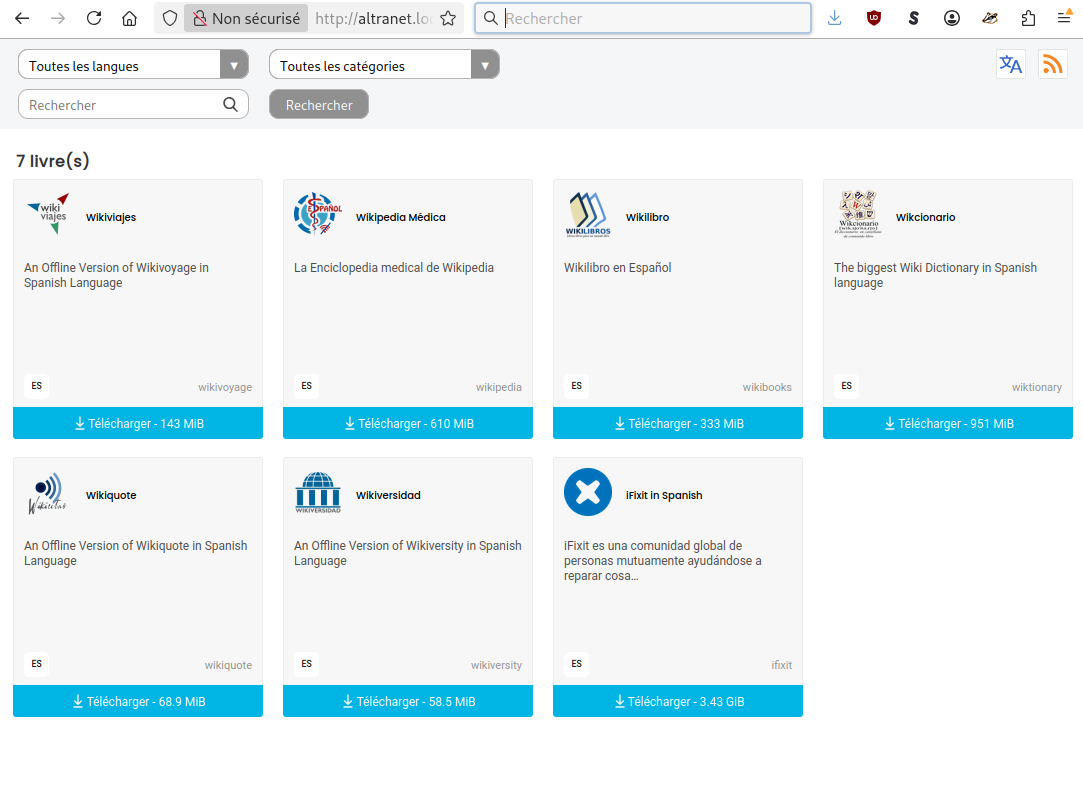
If you change the hostname of the server (here altranet), then you can consult wikipedia (and what you add to kiwx library) with a web browser at http://local.altranet.org
Prerequisites
Before starting, make sure:
- You have a Raspberry Pi with Raspberry Pi OS installed.
- You have an active internet connection.
- You are logged in as a user with
sudoprivileges. - My user is
admin, if yours is different please change it in the below scrips.
Installation Steps
Step 1: Update and Upgrade Your System
First, ensure your system is up to date:
sudo apt update -y && sudo apt upgrade -y
Step 2: Install Kiwix Tools
Install the Kiwix Tools package:
sudo apt install kiwix-tools -y
Setting Up the Kiwix Library
Step 3: Create a Library File
-
Create a directory to store your library:
sudo mkdir /home/admin/kiwix-library
Create an empty library.xml file:
sudo touch /home/admin/kiwix-library/library.xml
Open the file for editing:
sudo nano /home/admin/kiwix-library/library.xml
Add the following content and save the file:
<?xml version="1.0" encoding="UTF-8"?>
<library xmlns="http://www.kiwix.org/">
</library>
Step 4: Download a Sample Book
Download a sample ZIM file to your library directory:
sudo wget -O /home/admin/kiwix-library/archlinux_en_all_nopic_2022-12.zim https://download.kiwix.org/zim/other/archlinux_en_all_nopic_2022-12.zim
Step 5: Add the Book to Your Library
Add the downloaded ZIM file to your library.xml file:
sudo kiwix-manage /home/admin/kiwix-library/library.xml add /home/admin/kiwix-library/archlinux_en_all_nopic_2022-12.zim -u https://download.kiwix.org/zim/other/archlinux_en_all_nopic_2022-12.zim
Starting the Kiwix Server
Start the Kiwix server on port 80 using your library file:
sudo kiwix-serve --port=80 --library /home/admin/kiwix-library/library.xml
You can now access the Kiwix server by navigating to your Raspberry Pi's IP address in a web browser.
Optional
To start Kiwix on port 80 after boot up:
sudo nano /etc/systemd/system/kiwix.service
Add the following:
[Unit]
Description=Kiwix Serve
After=network.target

[Service]
ExecStart=sudo /usr/bin/kiwix-serve --port=80 --library /home/admin/kiwix-library/library.xml
WorkingDirectory=/home/admin/kiwix-library
User=admin
Group=admin
Environment=DISPLAY=:0
Restart=always
RestartSec=3

[Install]
WantedBy=multi-user.target
Finally, run the following:
sudo systemctl daemon-reload
sudo systemctl enable kiwix.service
sudo systemctl start kiwix.service
sudo systemctl status kiwix.service